The App Tab interface is effectively the main working interface for Pro users in the full client. Users will spend most of their working time within this interface moving between different apps and instances of models, reports, presentations, formulations, publications, and illustrations.
Example App Tabs
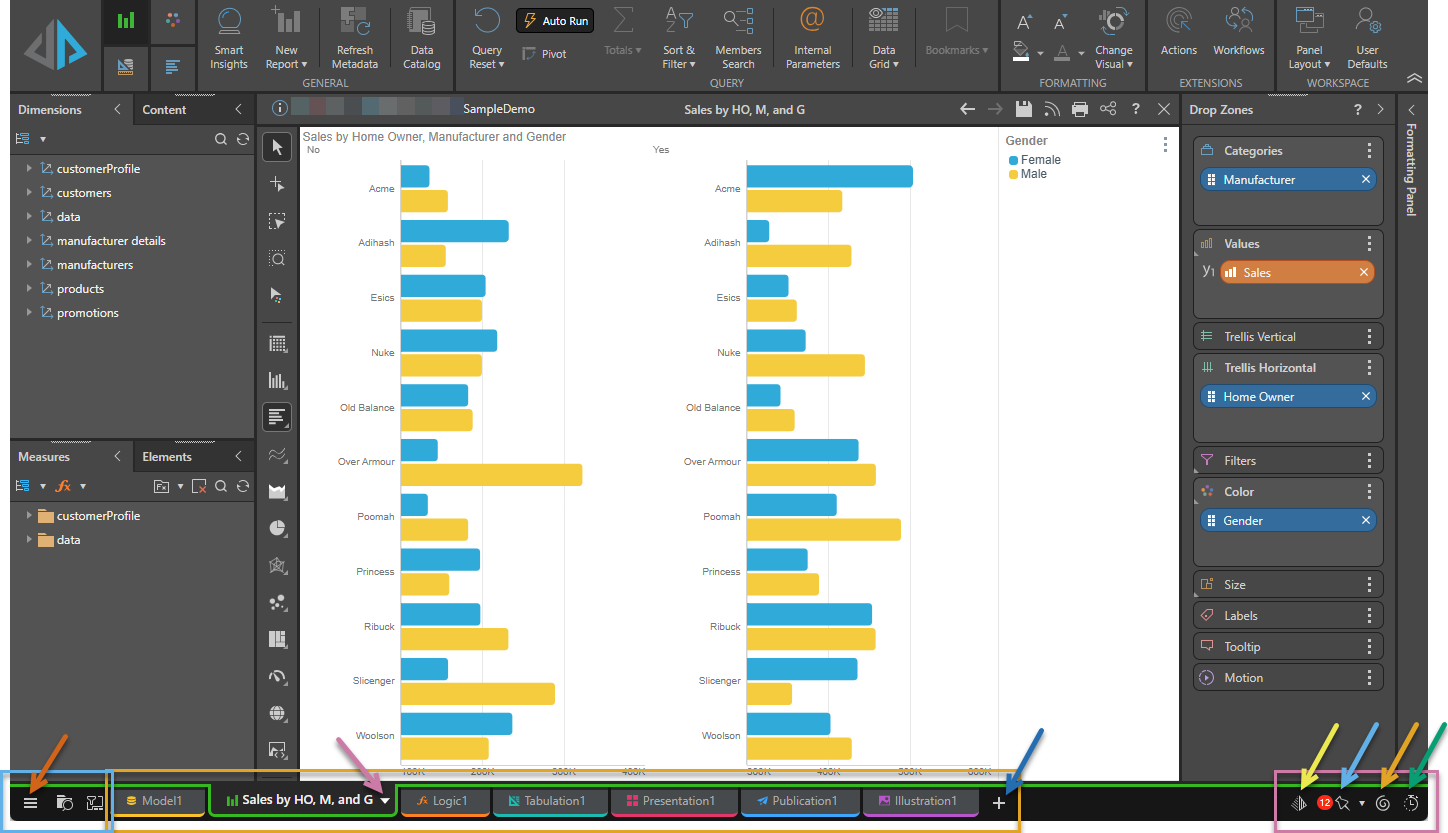
The App Tab interface has its own home menu, tab functions, and app tray items:
Main Navigation
To the left of the tabs (blue box):
- Home Menu - (brown arrow above) Opens useful jump buttons and quick content management functions.
- Quick Open - Opens the content folder tree.
- Tab Manager - Opens the App Tab Manager, which is used for filtering and managing open tabs.
Tabs
For details about navigating around the tabs, see Tab Navigation (orange box above):
- Tabs - Each tab represents a discovery, presentation, tabulation, and so on that is currently open.
- New Tab - (dark blue arrow above) Opens a new tab for the specified module.
- Tab Menu - (purple arrow) Opens a menu associated with each app tab.
Tab Navigation
Where there are too many tabs to show in the available space, there are some additional Forward and Back buttons (yellow box below) that you can use to navigate between the tabs:

- Use the Forward and Back buttons to navigate forward or backward through the open tabs:
- Click the single arrows (blue) to show one more tab to the left or right, or hold the single arrow to scroll through the tabs.
- Click the fast forward / rewind icons (purple) to show the first or last tab, respectively.
- Use your mouse wheel to scroll through the open tabs.
- Press
Ctrl + Arrow Keyon your keyboard to navigate between the tabs.
Tip: You can rearrange the tabs by dragging and dropping them into your desired order. Discover and Illustrate tabs can also be dragged and dropped directly onto an open presentation or publication.
App Tray
To the right of the tabs (purple box, main image):
- Chatbot - (yellow arrow) Opens the Chatbot for use within the open app.
- Bulletin Board Shortcut - (blue arrow):
- Click the Pin icon to open the bulletin board messaging framework. Note: If there are unread messages, the number of unread messages is shown in the red bubble.
- Click the Pop-up menu alongside the Pin icon to open the Feeds Shortcut and go directly to a specified feed, without using the bulletin board.
- Job Spooler - (orange arrow) Opens the job spooler dialog for viewing spooled print and model jobs.
- Performance Dialog - (green arrow) Where a discovery tab is selected in this view and the logged on user is an admin, a Clock icon appears in the Status bar. Click to open the benchmark dialog to show the query and application performance overview.